

With the popularity of WordPress with ever expanding list of features, it’s now being used more as a CMS for a website than a blog. With this, more and more people have to move the WordPress form a sub-directory to root of a website to properly setup website.
For all of its pages and posts, WordPress uploads all media files and linked images to the default /wp-content/uploads/ folder from the directory of its installation. Also, sometimes in our blog posts, we link to our other previous posts. So all these media files and URLs in the posts and comments content need to be updated with the WordPress location as well to avoid broken links. Those urls are now part of the content. Also, the images and other media files that we have uploaded and linked previously are also broken links due to the updated location of media folder.
Since there might be hundreds or thousands of such urls and links, it’s much better to use some plugin rather than updating and queering the database yourself. Since most bloggers are not developers and migth not even have the access to database, it;s the only option for them.
To easily update these media paths and links of yuor WordPress posts and pages from the WP Admin, use Search and Replace plugin. This plugin searches the strings in your database and replace the string with the provided value. You can search in ID, post-content, GUID, titel, excerpt, meta-data, comments, comment-author, comment-e-mail, comment-url, tags/categories and categories-description.
Using ‘Search & Replace’ Plugin
Install and activate the Search and Replace plugin and from WP Admin > Tools > Search & Replace.
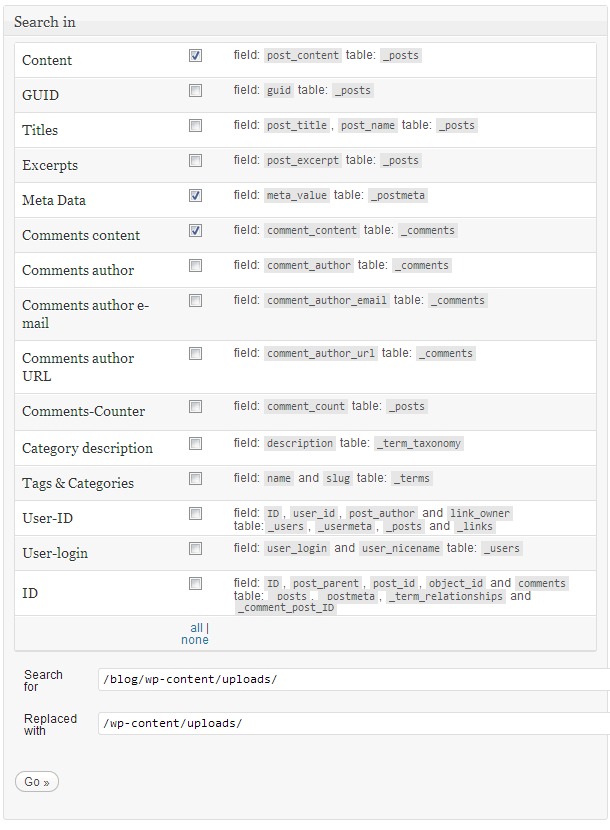
Let’s assume you had previously installed WordPress in the /blog/ sub-directory and now you have moved your media folder to the root of website. So you need to search /blog/wp-content/uploads/ and replace it with /wp-content/uploads/ string.
Provide in the search field old and new media folder paths of your WordPress Blog. Search /blog/wp-content/uploads/ and replace with /wp-content/uploads/. Please refer to the following screenshot for the guidance.
Hope that helps.
Cheers!


