
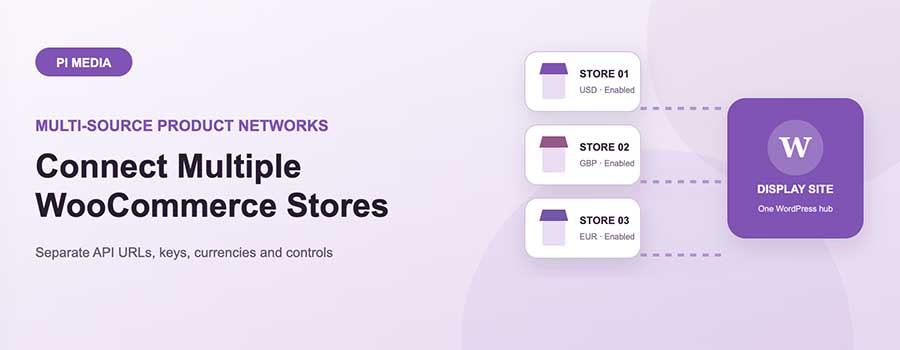
A useful partner website may work with more than one store. Product data, credentials and currencies should remain separate even when the catalogs appear under one WordPress brand. The Remote API workflow in PI Remote WooCommerce Product Display WordPress Plugin adds one source at a time and assigns each a stable source identifier.
Prepare each source connection
Ask every publishing store for:
- Its Source API URL.
- A domain-bound API key created specifically for your display hostname.
- The currency symbol to use with its prices.
- A clear store or partner name.
The publishing store must use the Publish or Publish + Display role and run WooCommerce. Your Display-only WordPress site does not need WooCommerce.
Add the first remote source
On the display website, open Remote API and complete the Add Source Site form:
- Enter a descriptive source name, such as “Partner Fashion Store.”
- Paste the full Source API URL. A store homepage is accepted, but the exact endpoint shown beside the issued key is clearer and less error-prone.
- Paste the domain-bound API key.
- Set the currency symbol.
- Keep Source enabled checked.
- Save the source.
The source appears in the Configured Sources table with an identifier such as site_1. That identifier is used by page placements and shortcodes.
Test before designing a catalog
Use Test next to the saved source. The plugin requests a small product response and reports whether the connection succeeds.
If it fails, verify the endpoint, key, source-store key status and allowed domain. Also confirm that the publishing store can serve its WordPress REST API over HTTPS. Testing the connection before creating layouts separates authentication problems from presentation problems.
Add more stores one by one
Repeat the form for each partner. The next connections become site_2, site_3 and so on. Each source can have its own label, endpoint, key, currency and enabled status.
You can then build pages such as:
- A fashion collection supplied by
site_1. - A local-gifts page supplied by
site_2. - An event merchandise page supplied by
site_3.
Each placement selects one source. Multiple shortcodes can also be placed on the same WordPress page, and each source has an independent pagination query variable so one catalog does not change the page number of another.
Licence allowances for connected sources
Standard supports up to 3 consumed API keys, Business up to 10 and Developer up to 20. If the configured source count exceeds the active allowance, only the permitted connections can fetch products until sources are removed or the licence is upgraded.
Plan for the number of active partner domains, not merely the number of landing pages. Page placements are unlimited; the tier limit applies to issued and consumed API connections.
Pause, edit or remove a source
Disable a source to pause its use without deleting its saved details. Edit it when a publisher regenerates a key, changes its API URL or needs a different label. Delete it when the source is no longer part of the network.
Before deleting a source, review Display on Pages placements and shortcodes that refer to its site_N identifier. Update those placements so visitors do not see a connection error or empty catalog.
Operational naming matters
Choose labels that remain understandable to another administrator. “Store 1” becomes confusing quickly; “Acme Outdoor — USD” is much easier to identify in a page-placement selector, cache review or support conversation.
To see how multiple source stores fit into responsive landing pages and affiliate catalogs, explore PI Remote WooCommerce Product Display.