A useful event website needs more than one global calendar. Visitors expect focused pages for cities, venues, performers, categories and seasonal topics. PI Events for SeatGeek includes a Display on Pages workflow that attaches filtered event listings to existing WordPress pages while showing the result in a live preview.
See how WordPress event landing pages with SeatGeek fit into the complete plugin.
A form on the left, live preview on the right
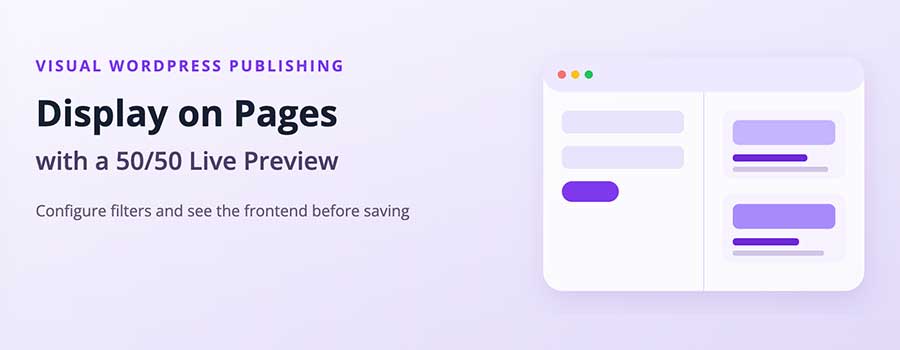
The Display on Pages screen uses a 50/50 layout. Configuration fields occupy the left half and a live rendering occupies the right half. As the administrator changes filters, result size or layout, the preview shows how the cards will appear using the saved Display Styles profile.
This shortens the usual save-and-check loop. Editors can confirm that the title, taxonomy, venue, performer, dates and card density support the page’s purpose before publishing the assignment.
Build pages around search intent
A city page might display upcoming events within a radius. A music landing page can filter by SeatGeek taxonomy. A venue article can show the venue’s next scheduled events, while a performer page can surface a tour schedule. Date, keyword, category, city, venue and performer filters make the same event source reusable across many contextual pages.
Live and imported content have separate Display on Pages areas because their filters and editorial roles differ. Both use the same frontend component system.
Five responsive event layouts
Administrators can choose two-, three- or four-column cards, a horizontal list, or masonry. Display Styles provides visual control over colors, typography, buttons, image height, radius, spacing and column behavior. Separate style profiles for live and imported listings allow current API feeds and editorial content to have related but distinct presentations.
The rendered markup is scoped to reduce conflicts with the active WordPress theme. The layouts are responsive, so a multi-column desktop display adapts for narrower screens.
Standard and Business publishing limits
Standard includes a maximum of three Display on Pages assignments across live and imported workflows. That is suitable for a focused event site with a homepage and a small number of primary discovery pages.
Business and Developer provide expanded page publishing and are better suited to portals that organize many locations, categories and editorial campaigns. Business also adds performer and venue directory landing pages through its separate Wizard, as well as landing-page cache warming for selected high-value pages.
SEO considerations for event landing pages
The event feed should support unique page content, not replace it. Add an original introduction explaining the location or topic, use a descriptive page title, keep the filters closely matched to the search intent, and link to related performer, venue and category pages. Imported events can provide durable WordPress permalinks; live events can use virtual details or auto-import-on-view.
All licences include affiliate parameter handling, so the same page assignment can send ticket visitors through configured SeatGeek Partner tracking links.
A step-by-step page assignment workflow
- Create or edit the destination WordPress page and add its unique editorial copy.
- Open the appropriate Live Events or Import Events Display on Pages screen.
- Select the page and define a focused set of filters.
- Choose the result count, pagination behavior and layout.
- Use the right-side preview to check field density, card width and visual hierarchy.
- Save the assignment, clear the relevant cache if needed, and test the public URL.
The preview reflects the plugin’s saved style settings, but the final page can still inherit surrounding theme typography and container behavior. A last frontend check remains important, particularly on themes with narrow content areas or aggressive global link styles.
Choosing the right layout
A two-column grid gives each card more space for long titles and venue details. Three columns work well for general discovery on standard desktop widths. Four columns favor image-led browsing and shorter field sets. The list layout is efficient for schedules because visitors can scan dates and locations vertically. Masonry accommodates mixed content heights but should be checked carefully for reading order and visual balance.
Do not choose the maximum column count by default. The best layout is the one that keeps essential information readable in the actual page container.
Planning the three Standard assignments
A Standard site might use its three assignments for a primary live-events page, a featured imported-events page and one high-value location or category page. Additional placements can still be created through shortcodes, but Business is the clearer fit when Display on Pages becomes a large landing-page operation with many managed assignments.
Business cache warming is particularly valuable for frequently visited landing pages. It refreshes selected pages before visitors arrive, while custom cache policies let the administrator balance data freshness and API load for the page type.
Keep related discovery pages connected
Link city pages to relevant venues, venue profiles to upcoming events, and event cards to performer information where useful. Business performer and venue directories provide stable indexes for this navigation. A well-connected structure helps visitors continue exploring instead of reaching a dead end after one event feed.
Create better SeatGeek event landing pages in WordPress →