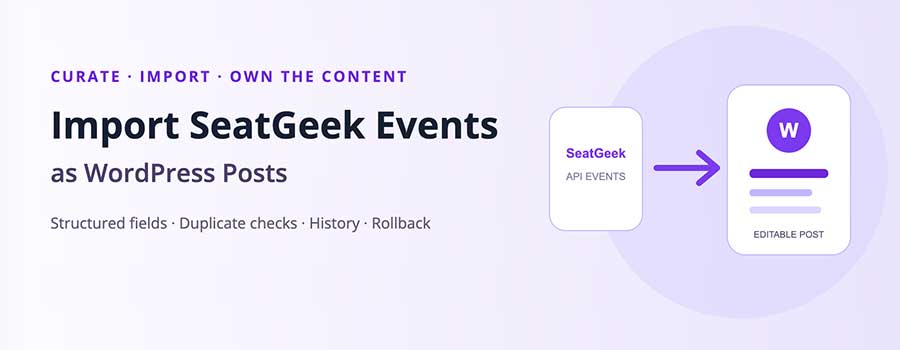
Importing SeatGeek events into WordPress is useful when event content needs a native permalink, editorial changes, WordPress taxonomies or long-term control. PI Events for SeatGeek combines targeted API search with a WordPress-native importer, then records each bulk operation so administrators can review or reverse it.
Review the full SeatGeek event importer for WordPress before choosing a licence.
Search SeatGeek before importing
The Search & Import screen is designed to narrow a large event catalog into a useful editorial set. Filters can include city, state, country, postal code, radius, keyword, performer slug, venue, category, date and price. Administrators choose the relevant results instead of copying an unfiltered feed into WordPress.
Duplicate detection checks the stored SeatGeek event ID and skips content that already exists. This matters when editors repeat searches or when several saved queries overlap.
Store events as structured WordPress content
Import Configuration selects the destination post type, publication status, author and taxonomy behavior. Imported Fields determines which SeatGeek values are stored. Available data can include the event ID and URL, date and time, venue name and address, city, state, country, coordinates, performer information, image, score, taxonomies and price information.
Because each event becomes native content, the site can add its own introduction, SEO copy or local context. Imported listings use the same frontend layout system as live results, so editorial control does not require a different design.
Import history and rollback
Every bulk import creates a timestamped session in Import History. The plugin retains recent sessions and associates the imported post IDs with the operation. If the wrong search was used or a test import should be removed, rollback deletes the posts belonging to that session. This creates a safer workflow than importing anonymous content with no operation record.
Business automation for recurring event publishing
Manual search and import are available in Standard, Business and Developer. Business adds scheduled auto-import through WP-Cron, saved search rules and multiple notification recipients. A publisher can save recurring queries for specific cities, categories or keywords and let the plugin collect newly available events on schedule.
Business also includes event-expiry automation. Past events can be unpublished or deleted, with an optional noindex behavior, helping large event sites keep archives and current listings aligned with their content strategy. CSV export makes imported records portable, while configuration export helps move non-secret plugin settings between installations.
Imported events, caching and page placement
Imported listing HTML is cached under the unified Cache Control Center. Standard uses a safe fixed policy; Business can tune the lifetime and warm selected landing pages. Imported events can be added with [sg_events source="imported"], the widget, or the Display on Pages form. The latter offers a 50/50 preview so the admin can inspect filters and layout before saving.
A recommended import checklist
- Choose the destination post type and decide whether new events should be drafts or published immediately.
- Select only the SeatGeek fields the site will display, search or use in templates.
- Run a narrow test query and import a small group first.
- Review titles, dates, time zones, venue addresses, images and ticket URLs.
- Check the Import History session before increasing the batch size.
- Build an imported-event style profile and preview the listing on a real WordPress page.
Starting with drafts is sensible when a site adds original descriptions or must verify event details before publication. Automated publishing is more appropriate when saved search rules are already proven and the source data can be accepted without manual review.
Use imported metadata intentionally
Storing every available API field is not always necessary. Keep the values required by frontend templates, search, filtering, integrations and future editorial work. Location fields and coordinates are valuable for regional discovery; performer and venue identifiers help build connected entity experiences; event dates support expiry rules and chronological queries.
Imported metadata also creates opportunities for custom theme work. Developer sites can use template overrides and ACF synchronization to fit event records into an established content model. External consumers can retrieve supported records through the plugin’s REST endpoints.
Managing past events
Event archives can be useful for editorial history, but they should not obscure current inventory or send visitors toward expired ticket actions. Business expiry automation can unpublish or delete past events and optionally apply noindex behavior. The right choice depends on whether the site values evergreen recaps and archive traffic or operates primarily as a current ticket-discovery service.
If deletion is selected, confirm retention requirements and backups first. Rollback is intended for recent import sessions; it is not a substitute for a complete site backup strategy.
Combining imported and live events
The two sources do not have to compete. A homepage can show curated imported highlights while city pages use broad live feeds. An editorial team can import major festivals and tours for custom coverage, then use live cards to fill out the surrounding schedule. Separate style profiles and source parameters keep the presentation controlled.
Licence placement at a glance
- Standard: manual bulk import, duplicate protection, field mapping, display controls, import history and rollback.
- Business: everything in Standard plus schedules, saved rules, notifications, expiry automation, CSV/configuration export and advanced cache control.
- Developer: everything in Business plus REST delivery, webhooks, template overrides and other integration features.
All three licences cover one server-verified domain.